
 العربية
 Deutsch
 English
 Español
 Français
 हिन्दी
 Indonesia
 Italiano
 日本語
 한국어
 Nederlands
 Português
 Türkçe
 中文
Interior concepts
Explore furnishings or visual treatments for a clearly presented concept.
AI Tools · Image generation
Describe a visual idea, modify a source photo or guide generation with reference images. The Image workspace in Simple Virtual Tour AI Tools brings the prompt, image settings and output preview into one workflow.
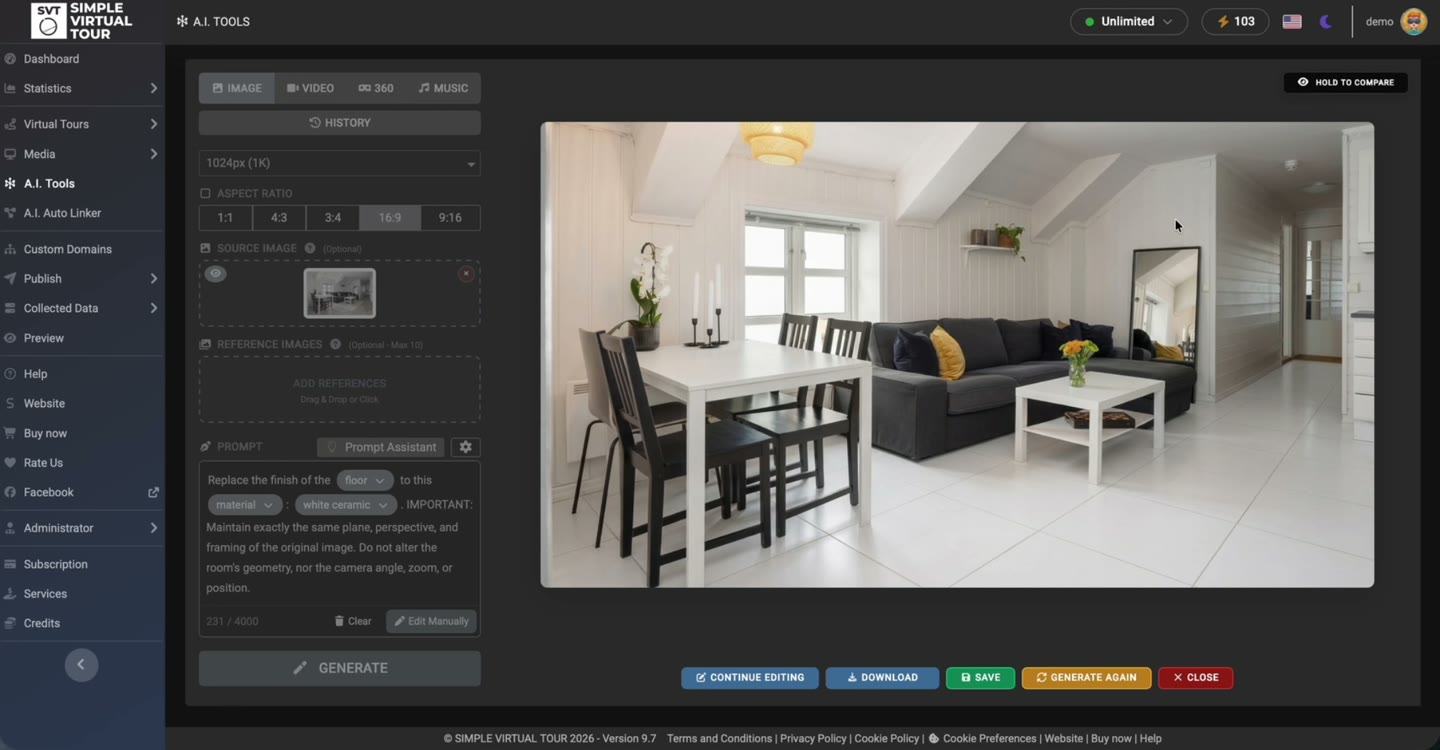
Start from a prompt and optionally supply a photo.
Use reference images to communicate visual direction.
Inspect the generated image and preserve your originals.
The recording shows a source image, a staging prompt and an interior result. It demonstrates the product controls and output preview; it does not guarantee an identical result from another prompt.
These are product demonstrations. Generated media and automated connections need review before you use them in a published tour.
Open AI Tools → Image. Start with text, or supply a source photo when you want to modify an existing image. Add references when useful.
Choose a resolution and aspect ratio offered by the interface. Describe the intended subject, changes and details to preserve.
Run the operation with your configured Google access. Review geometry, objects, text and visual consistency in the result preview.
Use the available save or download controls after review. Decide where the image belongs in your project and retain the source file.
Explore furnishings or visual treatments for a clearly presented concept.
Prepare images for informational media or presentation material.
Use a source and references to guide a consistent visual direction.
Add a neutral sofa and a small coffee table. Preserve the walls, windows, camera position and natural light. Keep the result realistic.
Illustrative prompt: adapt it to your own source material and review the generated result.
This demonstration uses the Self-Hosted A.I. Tools Plugin with Simple Virtual Tour Core. A separate Google Gemini API key and access to the required models are needed. API charges and quotas are separate from the software license.
The product recordings show the Self-Hosted workflow. For Cloud availability and quotas, check the tools enabled in your plan.
See shared requirements and pricing →Yes. The Image workspace accepts a text prompt; source and reference images are optional inputs.
Yes. Supply a source image and describe the changes. Reference images can also guide the visual direction. Inspect the output against the source.
Use the options shown by your installed version. Availability and processing requirements can depend on the selected operation and Google model access.
For editing an equirectangular panorama, use the dedicated 360° Panorama Editor. It provides the spherical targeting and inspection workflow described on its own page.
No. Inspect the output for altered geometry, unwanted objects or inaccurate details before you save or use it.
Choose the tool for the task, inspect the result and keep control of the tour you publish.
Requirements & costs →