 العربية
 Deutsch
 English
 Español
 Français
 हिन्दी
 Indonesia
 Italiano
 日本語
 한국어
 Nederlands
 Português
 Türkçe
 中文
A tour introduction
Prepare a short visual introduction to accompany the tour.
AI Tools · Video generation
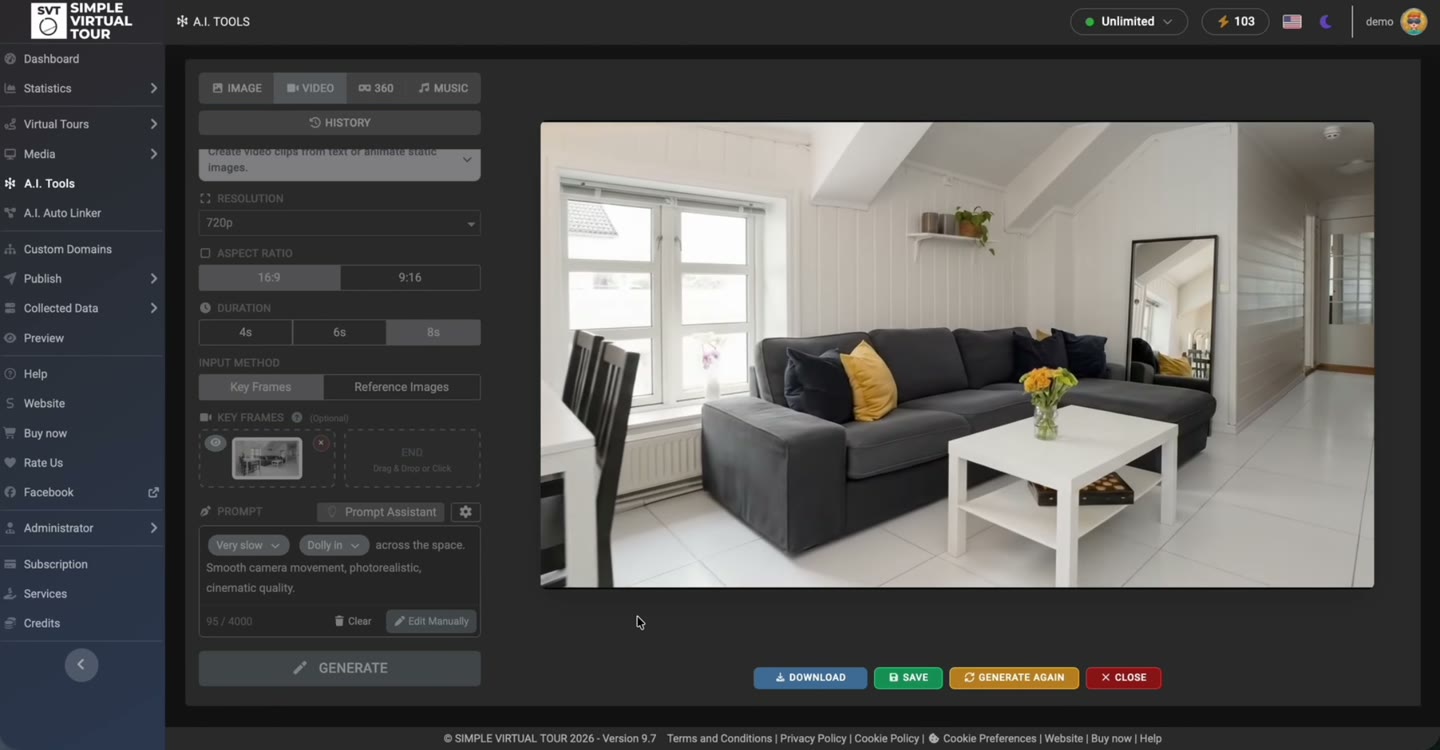
Create a video asset from a text prompt or animate images using the supported input modes. Simple Virtual Tour AI Tools provides video settings, keyframe or reference inputs, and a result player for checking the generated clip.
Describe the subject, motion and intended visual treatment.
Use the available keyframe or reference-image mode.
Watch the clip before saving or using it.
The recording follows an interior image through the Video workspace to a generated clip and playback preview. This is generated motion based on the supplied material, not a recording of a physical camera move.
These are product demonstrations. Generated media and automated connections need review before you use them in a published tour.
Choose AI Tools → Video. Define what the clip should show and where you intend to use it.
Use text and the available Key Frames or Reference Images mode. In keyframe mode, provide a start image and an end image when supported and useful.
Select duration, resolution and aspect ratio from the interface. The available combinations and model access govern what can be generated.
Generate, then watch the full result. Check object consistency and motion before using the save or download controls.
Prepare a short visual introduction to accompany the tour.
Explore movement from a selected image for project media.
Create a clearly identified concept clip from visual references.
Slow, gentle camera movement through the supplied interior. Preserve the room layout, furniture and daylight. Avoid adding people or new objects.
Illustrative prompt: adapt it to your own source material and review the generated result.
This demonstration uses the Self-Hosted A.I. Tools Plugin with Simple Virtual Tour Core. A separate Google Gemini API key and access to the required models are needed. API charges and quotas are separate from the software license.
The product recordings show the Self-Hosted workflow. For Cloud availability and quotas, check the tools enabled in your plan.
See shared requirements and pricing →Yes. The Video workspace supports prompt-driven generation and optional image inputs through the modes provided by the interface.
They provide visual input for the beginning and, when supported, the end of the generated clip. Inspect the transition rather than assuming all intermediate frames preserve the scene exactly.
The interface offers the supported options for the operation. Google model access, quotas and available combinations apply; check the current settings in your installation.
It produces a video clip. A navigable tour uses the room panoramas, navigation and viewer configured in Simple Virtual Tour.
The motion is generated from the prompt and inputs. Review and present it as generated media when that distinction matters to the viewer.
Choose the tool for the task, inspect the result and keep control of the tour you publish.
Requirements & costs →