
 العربية
 Deutsch
 English
 Español
 Français
 हिन्दी
 Indonesia
 Italiano
 日本語
 한국어
 Nederlands
 Português
 Türkçe
 中文
Ambient project audio
Prepare a musical atmosphere suited to the project.
AI Tools · Music generation
Describe the musical mood you need and review the generated track in the AI Tools workspace. The Music tool turns a written brief into an audio result you can preview and save for your project.
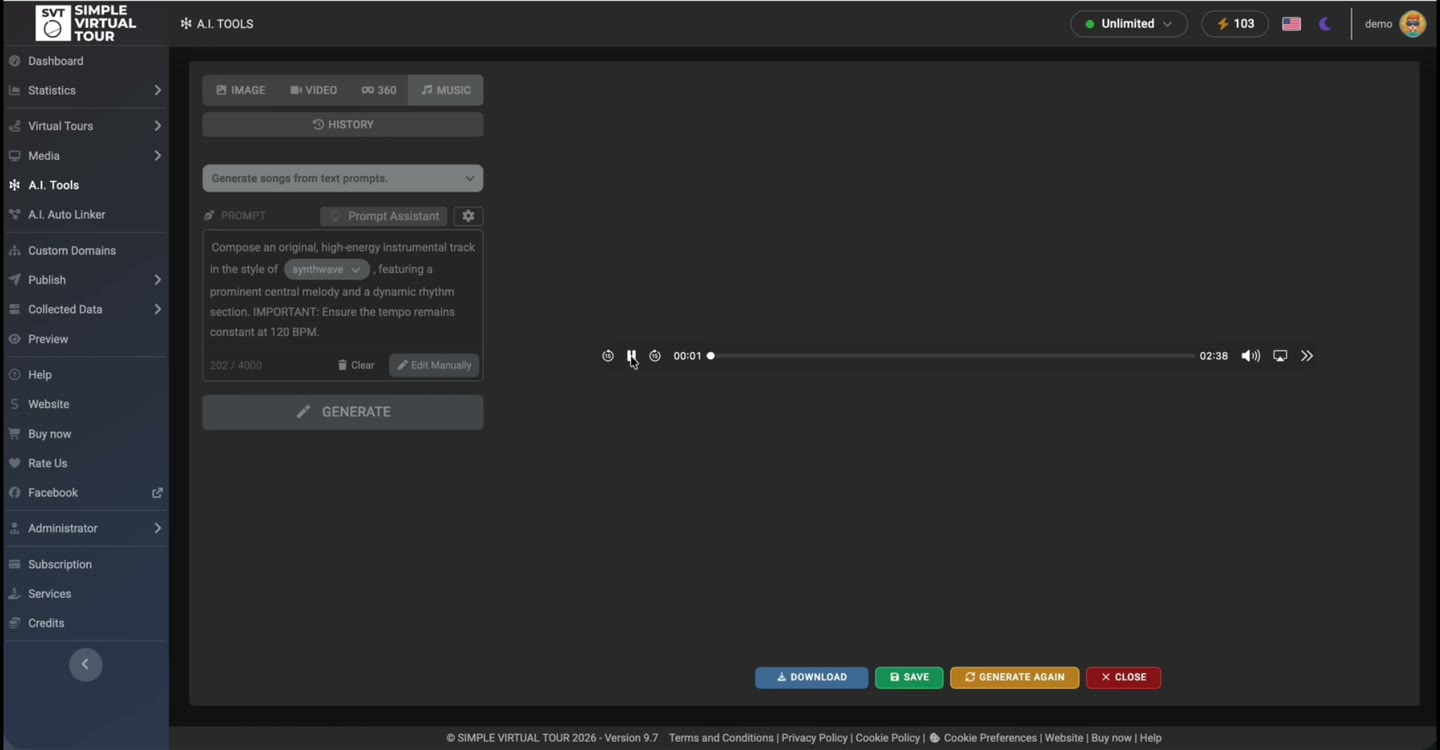
Use text to communicate mood, pace and instrumentation.
Listen in the result player before using the audio.
Use an approved result in your chosen audio workflow.
The recording shows the Music workspace, a written prompt, the generation step and the result player. This excerpt is silent and demonstrates the interface; it is not an audio sample of the generated track.
These are product demonstrations. Generated media and automated connections need review before you use them in a published tour.
Choose AI Tools → Music and decide which role the audio will have in the project.
Describe mood, pace, instruments and whether you want an instrumental result. These instructions guide generation and need to be checked in the output.
Run the operation using your configured Google access. Listen to the whole track in the result player.
Save or download the approved output. Check levels, transitions and playback in your intended tour or presentation.
Prepare a musical atmosphere suited to the project.
Create audio to accompany a visual presentation.
Compare different prompt descriptions before selecting a result.
Calm instrumental background music for an architectural presentation. Soft piano and subtle ambient textures, steady gentle pace, no vocals, no abrupt changes.
Illustrative prompt: adapt it to your own source material and review the generated result.
This demonstration uses the Self-Hosted A.I. Tools Plugin with Simple Virtual Tour Core. A separate Google Gemini API key and access to the required models are needed. API charges and quotas are separate from the software license.
The product recordings show the Self-Hosted workflow. For Cloud availability and quotas, check the tools enabled in your plan.
See shared requirements and pricing →The Music workspace uses a text prompt. Describe the character of the track you want and inspect the resulting audio.
You can include an instrumental or no-vocals instruction in the prompt. Listen to the result to confirm that it matches the request.
Yes. The result workspace includes an audio player so you can listen before saving or downloading.
Review and save the result, then choose how to use it in your project’s audio workflow. Test the final playback rather than assuming a generated track is already configured in the viewer.
No. The excerpt is a silent recording of the interface and generated track player. Preview actual generated music inside the application.
Choose the tool for the task, inspect the result and keep control of the tour you publish.
Requirements & costs →