
 العربية
 Deutsch
 English
 Español
 Français
 हिन्दी
 Indonesia
 Italiano
 日本語
 한국어
 Nederlands
 Português
 Türkçe
 中文
Object replacement
Generate a different object in a selected area, as shown in the car-to-rover demonstration.
360° editing · Cloud & Self-Hosted
Simple Virtual Tour lets you edit an equirectangular panorama with AI: choose an area in the spherical view, describe your change and inspect the generated result in 360°. Use the editor on Cloud or with the A.I. Tools Plugin for Self-Hosted.
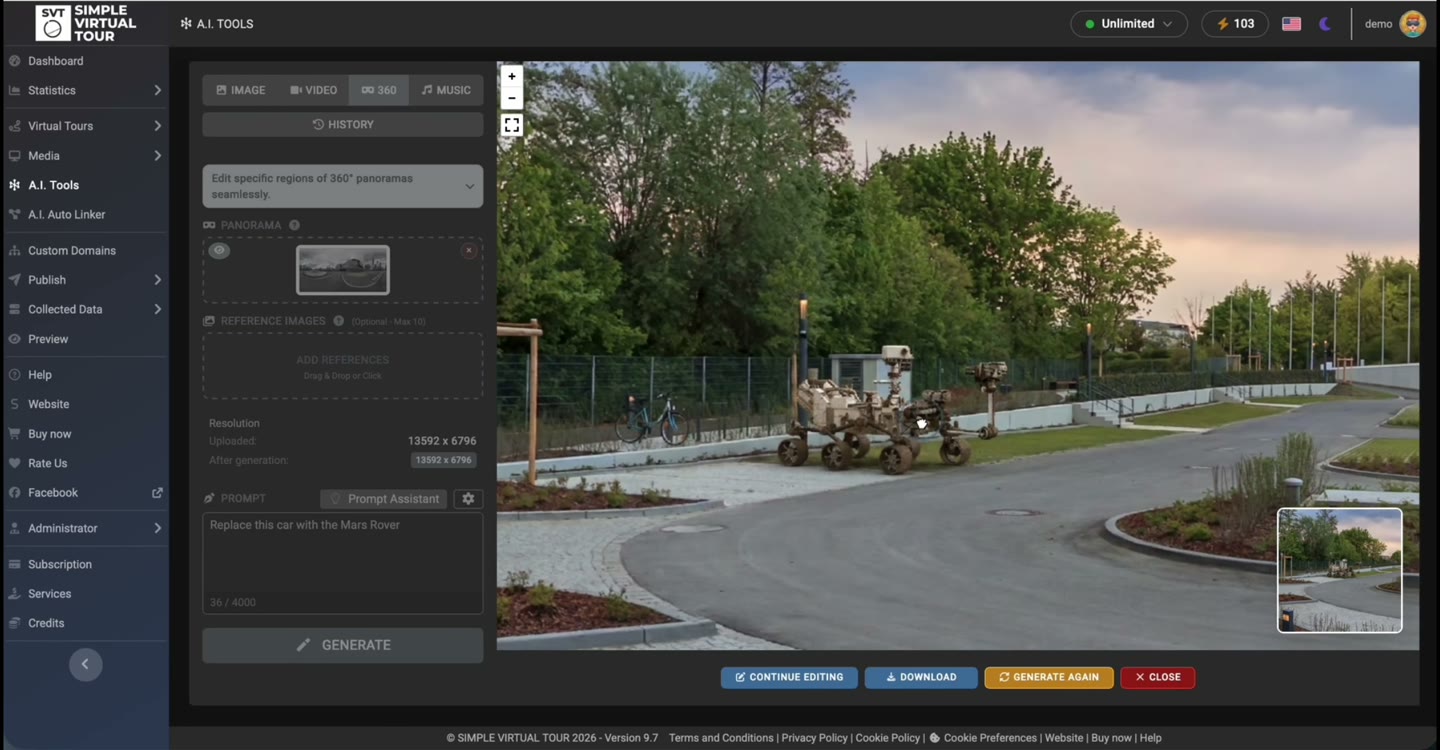
Start with an existing equirectangular 360° image.
Frame the area you want the AI to change.
Inspect the edited panorama before publishing.
See the actual workflow
This recording shows the Simple Virtual Tour interface, from selecting a region to viewing the generated panorama. The example replaces a parked car with a Mars rover to demonstrate a creative edit.
This is a creative demonstration, not a promise that every edit will produce the same quality. For property listings or documentary work, keep changes truthful and disclose material alterations.
Targeted AI editing, also called inpainting, generates a change inside a chosen region from your text instructions. The workflow below follows the recorded demonstration.
Open A.I. Tools, select the 360 mode and load an equirectangular panorama. Start with a well-stitched image and keep the original file.
Move around the spherical view to place the target frame over the object or region you want to edit. Work on one clear change at a time.
Enter a text prompt and generate the edit. In the recording, the prompt asks to replace the car with a Mars rover. The editor shows progress while the AI result is prepared.
Look around the edited panorama, including the edges of the changed area. Continue editing or download the result using the controls shown in the demo. Review it again before adding it to a published tour.
Generate a different object in a selected area, as shown in the car-to-rover demonstration.
Explore a visual concept while starting from your own panorama. Keep the original and edited versions separate.
Try a focused prompt for a distracting element or a small region. Inspect textures, straight lines and lighting before accepting the result.
Describe the intended change and the details that should stay consistent. This is an example prompt you can adapt, not an additional demonstrated result:
Remove the small bin in the selected area. Continue the surrounding pavement with matching texture and lighting. Preserve the curb, buildings and perspective.
Both versions support the AI Panorama Editor and require a separate Gemini API key. Google determines API pricing, quotas and model availability; AI usage is separate from the SVT software or hosting price.
Simple Virtual Tour
Use the editor in the hosted Simple Virtual Tour platform. We manage the application hosting. Configure your Gemini API key and choose the Cloud plan that fits your tour and storage needs.
View Cloud plans →Core + A.I. Tools
Install Simple Virtual Tour on your own hosting and add the optional A.I. Tools Plugin. The editor is part of the plugin; the plugin needs the Core application.
Current one-time prices in USD, excluding VAT. Hosting and Google API usage are separate. See checkout for applicable taxes and available bundles.
View Self-Hosted options →| Application | Simple Virtual Tour 9.2 or later |
|---|---|
| Server | PHP 7.4 or later and MySQL (documented plugin minimums) |
| AI service | A separate Gemini API key from Google AI Studio |
| Availability | Check that Gemini API is available in your server region |
Check the plugin specifications and Google service information before setting up your installation:
Simple Virtual Tour includes an AI Panorama Editor on Cloud and through its optional A.I. Tools Plugin for Self-Hosted. It lets you load an equirectangular image, target a region and generate an edit from a text prompt.
Yes. The demonstrated workflow starts from an uploaded equirectangular panorama and edits a selected area in the spherical view. You can inspect the resulting panorama before downloading it.
Yes. It is available on both Cloud and Self-Hosted. Cloud provides application hosting; Self-Hosted requires the Core application and the A.I. Tools Plugin on your own server.
Yes. A separate Gemini API key is required. Google sets the API usage costs and limits. Buying an SVT license or Cloud plan does not include unlimited Google AI generations.
No. For Self-Hosted, it extends the Simple Virtual Tour Core application. You do not need the SaaS plugin just to edit your own panoramas.
Results need review. Inspect the full spherical image, the wrap seam and the boundaries of the edited region. Generative changes can introduce distortions or alter details that matter to the accuracy of a tour.
Watch the real workflow, check the requirements and choose how you want to run Simple Virtual Tour.
See options & requirements →