
 العربية
 Deutsch
 English
 Español
 Français
 हिन्दी
 Indonesia
 Italiano
 日本語
 한국어
 Nederlands
 Português
 Türkçe
 中文
A first navigation pass
Reduce repetitive connection work when assembling a multi-room tour.
AI Tools · Automatic room linking
Use AI to help build navigation between room panoramas. Auto Linker analyzes the tour’s images and creates connections you can inspect and align, helping with the repetitive work of assembling a multi-room tour.
Start with a tour containing at least two panoramas.
Choose the analysis options and run the operation.
Inspect the route and viewing directions before publishing.
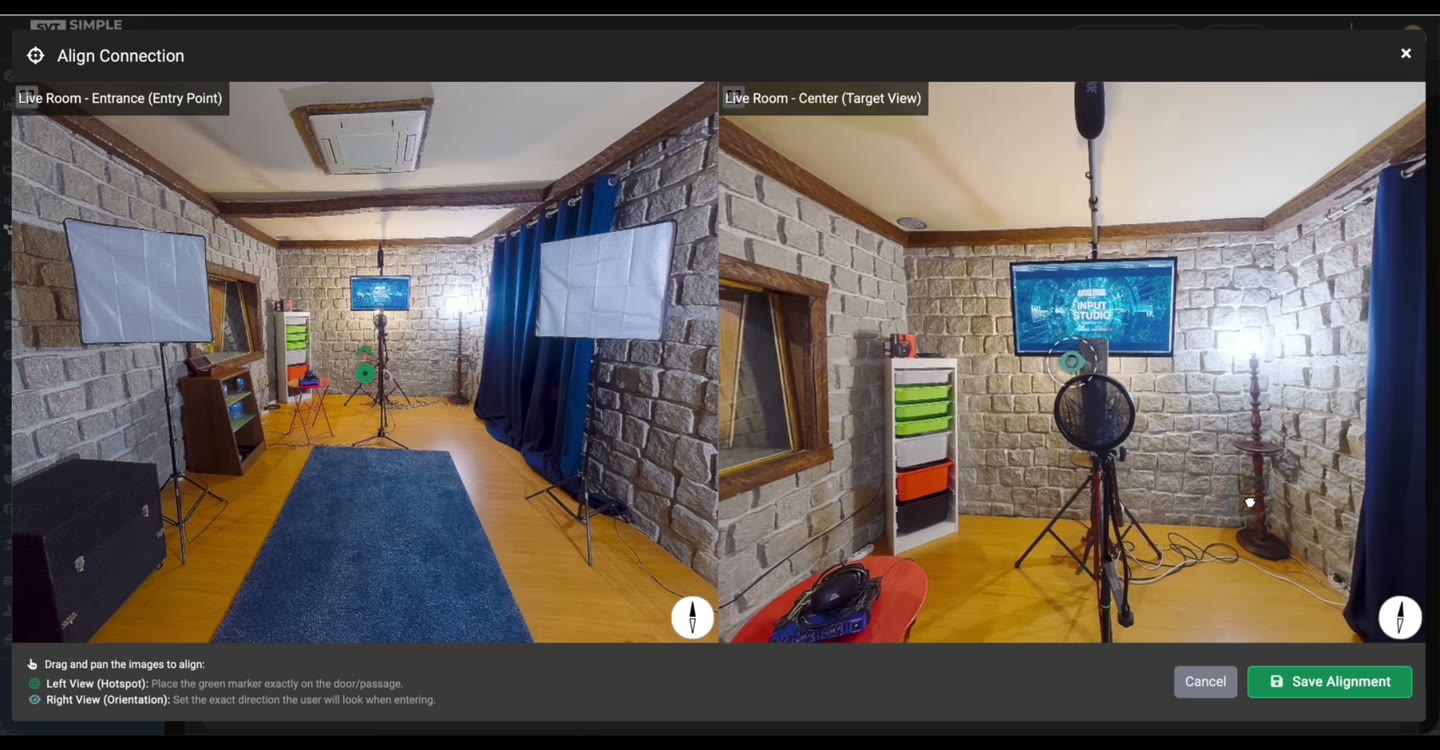
The recording shows analysis setup, the resulting room connections and panorama alignment. It demonstrates the tour-building workflow; results depend on the images and require a navigation check.
These are product demonstrations. Generated media and automated connections need review before you use them in a published tour.
Import the panoramas into the intended tour. Auto Linker needs at least two images; use a source set that makes the route understandable.
Open A.I. Auto Linker for the selected tour. Review the available generation and naming options, and the panorama order when using that workflow.
Start the operation with the configured Google access. Wait for the result and inspect the connections it creates.
Use the preview and alignment controls to check the viewing directions. Visit the rooms in the viewer and correct any missing or unsuitable navigation.
Reduce repetitive connection work when assembling a multi-room tour.
Inspect how the generated connections relate to the actual layout.
Use panorama alignment controls to refine how a visitor enters the next room.
Choose the environment type and optionally provide a floorplan image or a written description of the layout. If you mark the room order as logical, review it first: that sequence will also be saved as the tour’s room order.
This demonstration uses the Self-Hosted A.I. Tools Plugin with Simple Virtual Tour Core. A separate Google Gemini API key and access to the required models are needed. API charges and quotas are separate from the software license.
The product recordings show the Self-Hosted workflow. For Cloud availability and quotas, check the tools enabled in your plan.
See shared requirements and pricing →The current interface requires a tour with at least two panoramas before analysis can run.
It works with panoramas already in the selected tour and helps connect them. Prepare your room images before starting the workflow.
Yes. Inspect every connection against the real layout, especially where rooms look similar or the route is ambiguous.
The documented product workflow includes panorama preview and alignment controls, including alignment of the next panorama. Use them to refine viewing directions and check the viewer result.
No. Image content and the layout affect the result. Review the connections and make the corrections your tour needs before publishing.
Choose the tool for the task, inspect the result and keep control of the tour you publish.
Requirements & costs →