
 العربية
 Deutsch
 English
 Español
 Français
 हिन्दी
 Indonesia
 Italiano
 日本語
 한국어
 Nederlands
 Português
 Türkçe
 中文
On Google Maps
Visitors explore the connected Photo Spheres using Google’s interface. Google controls processing and how contributed imagery is displayed.
Google Street View · GSV Plugin
Simple Virtual Tour’s Google Street View plugin turns selected tour panoramas into connected Photo Spheres on Google Maps. Choose the rooms, place them on the map, set north, build connections and review the submission status from one publishing wizard.
Choose the rooms and optional levels you want to publish.
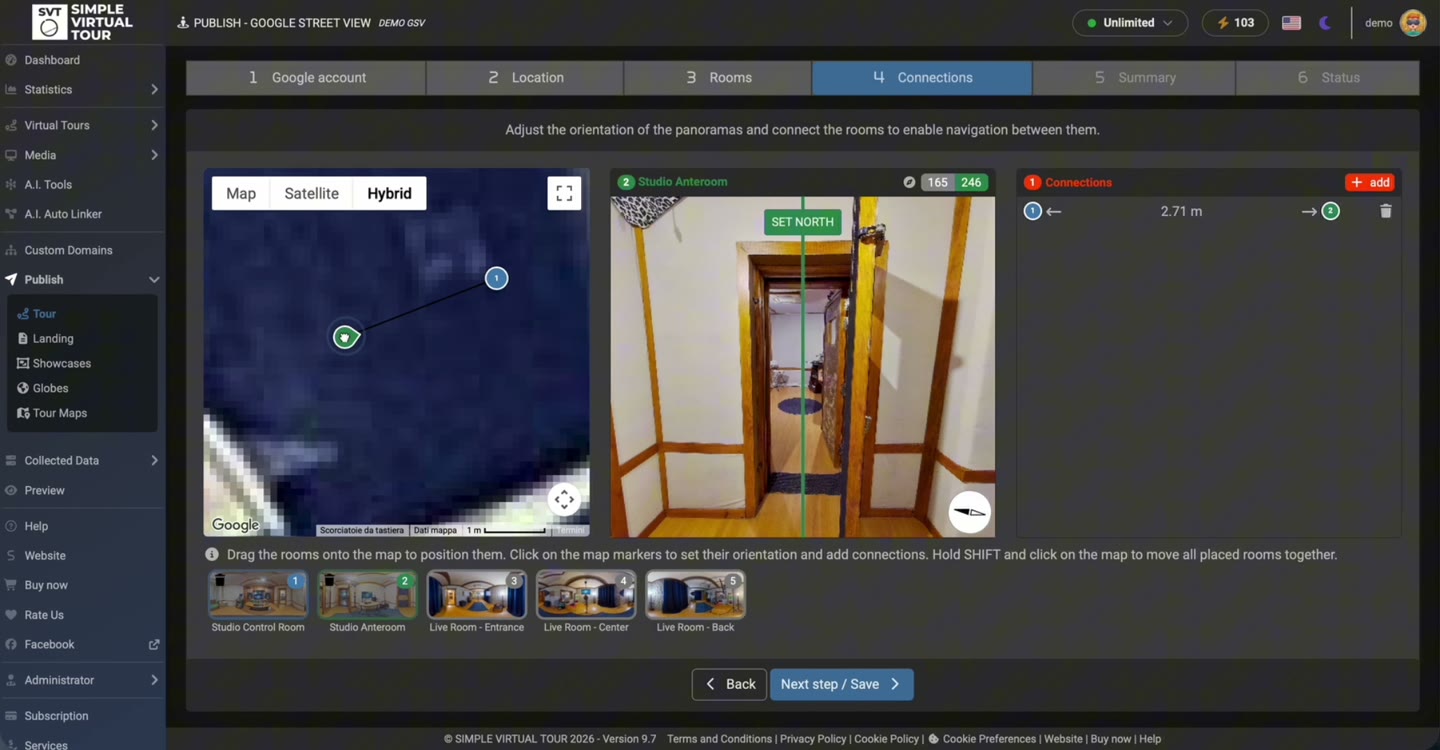
Set positions, north orientation and links between rooms.
Review submission status and open the resulting Google links.
Real product demonstration
The recording shows the six publishing stages: Google account, Location, Rooms, Connections, Summary and Status. It demonstrates room placement, panorama alignment, submission progress and the result on Google. The exact appearance of controls can vary with the installed version.
Open Publish → Tour and choose the Google Street View publishing option. After the installation is configured, follow these six stages.
Sign in with the Google account that will own the uploaded imagery and grant the requested publishing permission. An API key alone does not authorize uploads: the Google account must complete OAuth consent.
Find the venue or business when a place association is appropriate. This identifies the place; it does not replace the individual positions of the panoramas.
Select which tour panoramas to include. For a multi-floor venue, add the relevant levels and assign the rooms.
Place every selected room on the map, including indoor rooms. Set north from the panorama preview and connect the rooms along the real walking route. Check the navigation directions rather than putting every room on the same venue pin.
Check the selected images and connections before publishing. Keep the publishing window open while the plugin processes the submission.
Check the status for each room and follow its Google link. Upload completion and the appearance of navigation links on Google are separate stages; allow time for Google processing.
A Google Street View publication and an SVT tour on your website serve different purposes. The plugin publishes photos and their location, orientation and connections; it does not export the full SVT viewer interface into Google Maps.
Visitors explore the connected Photo Spheres using Google’s interface. Google controls processing and how contributed imagery is displayed.
Keep your SVT viewer, branding, information hotspots, media and calls to action. You can link to or embed this tour separately from the Google publication.
For Self-Hosted, open Settings → Google Street View and follow the installation’s configuration instructions. Enable the listed Google APIs and configure both the API key and an OAuth web client. Copy the exact redirect URI displayed by your installation.
The API key supports the configured Google services. OAuth authorizes the user’s Google account to publish imagery. Client ID, Client Secret and redirect URI must match the same valid Google configuration.
The Google Street View plugin extends Simple Virtual Tour Core. Purchase the Core application and the GSV plugin for your own installation, or review the available bundles.
Simple Virtual Tour
Run Simple Virtual Tour on your hosting and enable the publishing workflow with the optional GSV plugin.
Current one-time prices in USD, excluding VAT. Hosting and any separately billed Google services are not part of the software license. Check checkout for taxes and bundles.
View Self-Hosted options →Google currently lists the Street View Publish API as free of charge. Other Google services used for maps or place search can have separate billing and quotas. Check the enabled APIs in your Google project.
Read Google API pricing ↗| Application | Simple Virtual Tour 8.1 or later, with the GSV plugin installed |
|---|---|
| Server | PHP 8 or later and MySQL |
| Google configuration | Enabled APIs, an API key and OAuth web-client credentials |
| Publishing account | A Google account authorized to publish and manage Street View imagery |
Setup instructions and primary sources
Yes. The GSV plugin provides a workflow for selecting rooms, positioning panoramas, setting north, adding connections and submitting the imagery. A valid Google configuration and authorization are required.
No. Use the current Google Maps workflow for individual Photo Spheres, or a publishing tool such as the SVT GSV plugin for connected photos. Street View Studio is a separate workflow for supported outdoor 360° videos.
Yes. Position each selected room in the plugin and set its orientation, even inside a building. Associating the tour with a venue is a different step from placing individual panoramas.
No. The Google publication contains the panoramas and their supported metadata and connections. Your SVT viewer, custom branding and interactive hotspots are published separately.
Check the OAuth Client ID and Client Secret in the installation settings, and verify the exact authorized redirect URI in Google Cloud Console. Credentials must belong to a valid OAuth web client.
No. Check the plugin’s room status and the resulting Google links. Google processes the imagery and connections after submission and controls their availability.
Do not rely on automatic blurring for contributed Photo Spheres. Review and blur sensitive details in your own images before uploading them, following Google’s privacy guidance.
Review the real workflow and the Google setup requirements, then choose the SVT configuration for your project.
Requirements & pricing →