
 العربية
 Deutsch
 English
 Español
 Français
 हिन्दी
 Indonesia
 Italiano
 日本語
 한국어
 Nederlands
 Português
 Türkçe
 中文
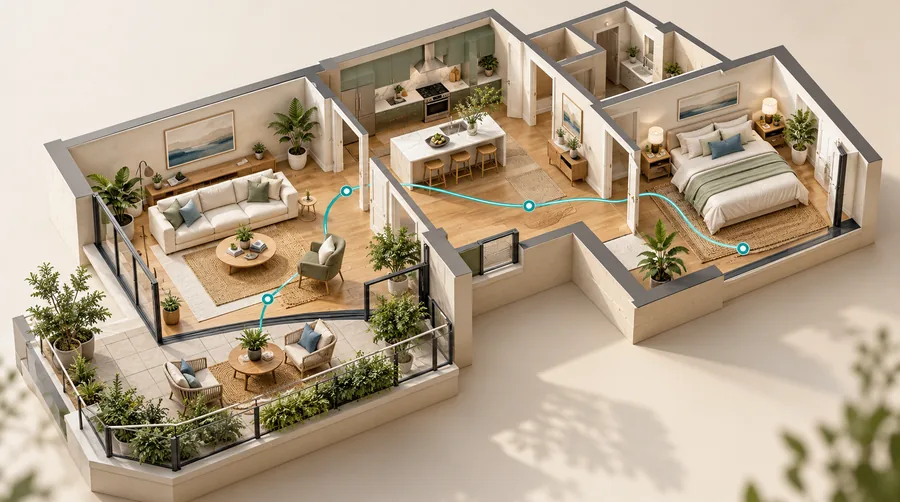
Review date: 12 November 2026. This guide is published by the SVT developer and was checked against the cited documentation and relevant application source.
A virtual tour is an interactive way to move through a space using linked panoramic scenes, optional floor-plan points, and information hotspots. In Simple Virtual Tour, the tour is built from rooms, then connected with markers, enriched with POIs, and published to a permanent visitor link. Method note: this article is based on public documentation review and source inspection from the SVT publisher, not hands-on product testing.
If you are trying to separate a virtual tour from a single 360 photo or a simple video walkthrough, the key difference is navigation. A still panorama shows one viewpoint. A virtual tour adds movement between viewpoints and can include text, media, forms, and map-style orientation aids. For a broader comparison, see the difference between a 360 photo and a virtual tour and the related overview of what a 360 panorama is.
What makes a virtual tour interactive
The core of a virtual tour is a sequence of rooms. Each room is usually a full spherical panorama, and the visitor moves from one room to another by selecting markers or other on-screen controls. That is why the feature is more than a gallery: it creates a navigable experience, not just a set of images. In Simple Virtual Tour, rooms are added separately from the tour record.
Navigation is handled through room connections. The documentation describes markers as a way to connect a source room to a destination room, with the option to set a target view and an optional return marker. In practical terms, that means the visitor can move forward through a space, then return or branch to another room as the tour designer chooses. For a deeper walkthrough of this mechanic, see virtual tour hotspots and the tutorial on how to connect rooms in a tour.
POIs add context. A point of interest can attach text, media, or an action to a precise location in a room. This is useful when you want to label a feature, explain a detail, or open supporting content without forcing the visitor to leave the scene. The editor workflow for that is documented in how to add contents POIs into a room. If you also need visitor data collection, the separate forms workflow is covered in how to add forms into the tour main form POIs form.
Common pieces of a virtual tour
- Rooms: the panoramic scenes that visitors explore.
- Markers: the links that connect one room to another.
- POIs: on-scene information or actions attached to a location.
- Floor plans: map-style references that can show room relationships.
- Publish settings: controls that determine how the visitor link is accessed.
Floor plans are helpful when the experience needs orientation. In Simple Virtual Tour, floor plans are not automatic room measurements or generated 3D models; they are supplied images that you assign to rooms and points, then calibrate by setting room north and enabling the floor-plan display in the editor interface. The documented workflow is in how to add floorplans, and the related internal overview is virtual tour with floor plan. The feature route floor plans and maps explains the feature concept from the product side.
In SVT, Publish → Tour provides the existing visitor link and embed code. Review status, protection and scheduling to control access, and test the intended visitor experience before sharing. Related guides: how to publish a tour, how to protect a tour.
How virtual tours are created in practice
The usual workflow begins with image capture and then moves into editing. For SVT, a room expects a full spherical equirectangular JPG or PNG with a 2:1 ratio. That is the standard input for a panorama room, but aspect ratio alone does not prove the image is a genuine full sphere. The creation guide is in how to create a room panorama, while the general setup is covered in how to create a virtual tour.
In a typical operating workflow, a publisher adds the tour, uploads rooms, connects them, adds POIs where needed, and then adjusts publish settings for the visitor-facing link. If there is a floor plan, that is added separately. Branding is configured separately, and broader customer editing workflows belong to the SaaS layer rather than the core tour itself. For a broader product-model comparison, see self-hosted vs cloud and interactive virtual tour software.
Cloud and self-hosted deployment change who operates the system, not what a tour is. Cloud is provider-hosted for the subscriber account. Self-hosted means you run the software on your own PHP/MySQL server, while the SaaS plugin is the separate layer used for operator-managed customer accounts. Those are different delivery models for the software, but the visitor experience still centers on rooms, links, POIs, and access settings. If you are comparing operating approaches, the internal guide hosting virtual tours explained is the most relevant starting point.
When a virtual tour is the right format
A virtual tour works best when the user should understand a space by moving through it rather than by reading a static description. That makes it useful for property listings, hospitality, schools, museums, showrooms, events, and other places where spatial context matters. It can also support optional tools such as lead forms or live guided tours, but those are additions to the basic tour structure, not the definition of the tour itself. See lead capture for that feature explanation.
For creators, the practical question is usually which building blocks are needed: a small tour with a few rooms and simple markers, or a richer project with POIs, floor plans, forms, and branded publishing. The creation path is documented in how to create a virtual tour, and the internal step-by-step article how to create a virtual tour expands the same workflow in publishing language.
So, a virtual tour is not just a panorama and not just a video. It is an interactive visitor route built from connected scenes, with optional layers for orientation, information, and access control. When those pieces are assembled, the result is a navigable representation of a place that visitors can explore at their own pace.